
20 Hidden Canva Features That Most Creators Miss
Unlock the secret tools inside Canva to save hours, boost your brand, and create like a pro — even if you’re not a designer.

Ever feel like you're only scratching the surface with Canva?
Yeah, me too.
Most people open Canva, drop in a few elements, and call it a day. But what if I told you there's a whole hidden layer to Canva that can seriously 10x your content game?
Let’s pull back the curtain.
Here are 20 Canva features you probably didn’t know about — but once you do, you’ll wonder how you ever created without them.
1. Magic Resize (Even After You Publish)
Ever created the perfect Instagram post and then realized… you need it in story format, too?
Hit "Resize" → Pick your platform → Boom. Done.

2. Bulk Create with Data Merge
Creating 50 Instagram quotes?
Upload a spreadsheet and auto-generate designs.
Seriously — one click. 50 graphics. No burnout.
3. Brand Kit (With Fonts + Logos Ready)
Keep your colors, logos, and fonts locked in.
One click = consistent branding across everything.
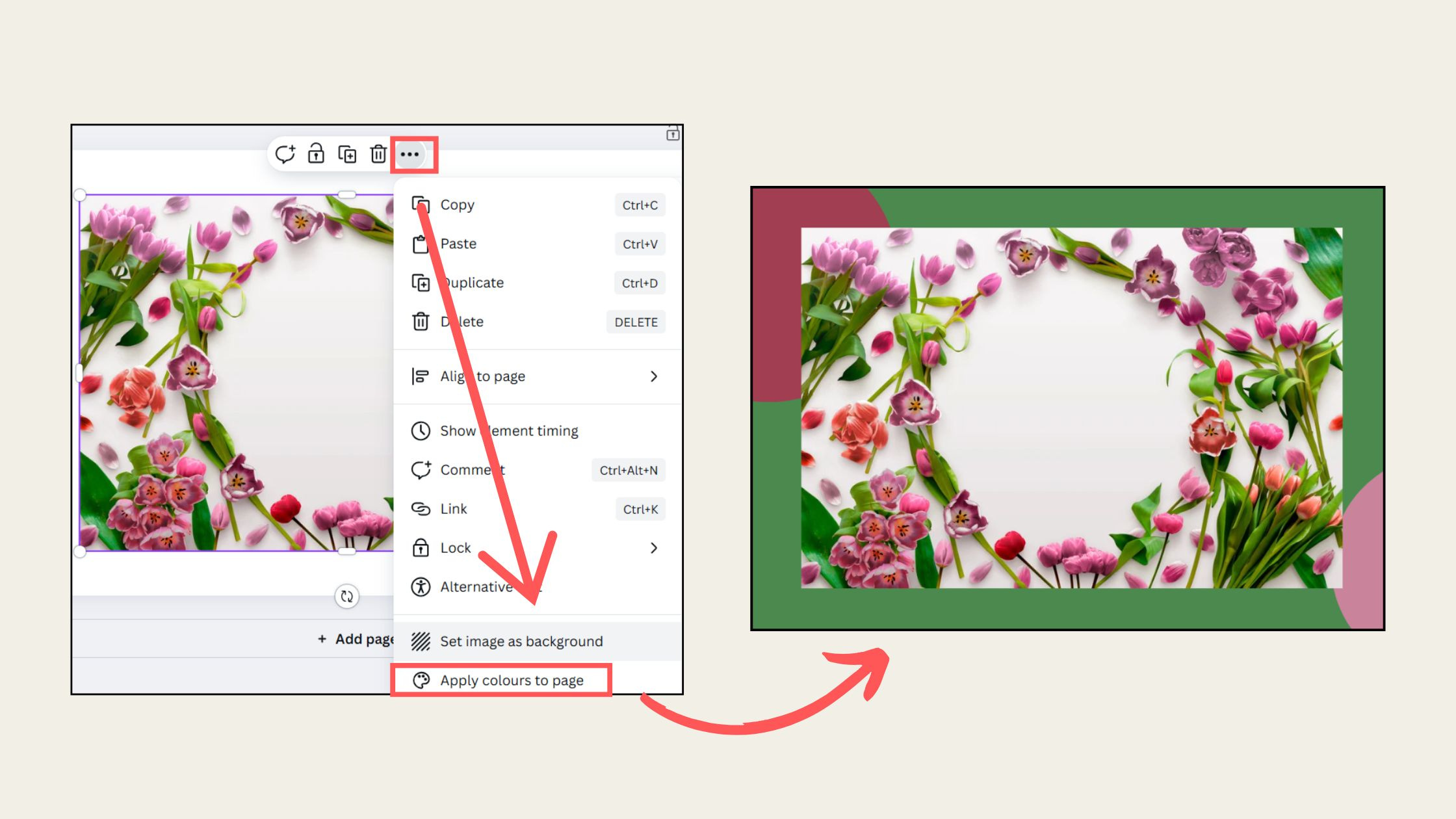
4. Text-to-Image (AI Image Generator)
Type “a cat meditating on a mountain at sunset.” → Get an original image.
Perfect for blogs, newsletters, and scroll-stopping posts.
5. Instant Background Remover (Pro Feature)
Upload your photo → Click “Background Remover” → Done.
No Photoshop, no headache.
6. Custom Animations
Want your text to bounce, fade, or zoom in like a TED Talk slide?
Click “Animate” → Choose a style → Look like a pro.
7. Canva Docs (Yes, Like Google Docs… But Better Looking)
It’s writing meets design.
Add charts, videos, icons — all in one doc.
And yes, you can present it like a slide deck too.
8. Smartmockups
Turn your designs into real-life scenes:
Put your logo on mugs, screens, and shirts — instantly.
9. Create QR Codes Right Inside Canva
No third-party tools needed.
Just search “QR code,” paste your link, and drop it in your design.
10. Built-In Content Planner
Schedule your posts across platforms without leaving Canva.
Design, write, schedule — in one flow.
11. Photo Filters with Sliders (Not Just Presets)
Go beyond “filter 1.”
Tweak contrast, blur, saturation — right inside Canva.
12. Draw Freely (With the Pen Tool)
Sketch on top of the designs.
Great for annotations, storyboards, or adding a personal touch.
13. Document Comments for Team Feedback
Working with a VA or client?
Drop a comment on any element. Collaboration = easier than email.
14. Slide Transitions Like Keynote or PowerPoint
Canva isn’t just for static slides anymore.
Add transitions, build timing, and autoplay. It's presentation-level stuff.
15. Keyboard Shortcuts That Save Hours
Try this: Press T for a text box, R for a rectangle.
Little hacks = big time saved.
16. Canva Video Editor
Trim clips, add transitions, and drop in music.
Surprisingly powerful for short-form content.
17. Auto Translate Your Design
Design once. Translate into 100+ languages.
Your global content game? Just leveled up.
18. Frames & Grids for Perfect Cropping
Want your image inside a circle or phone screen?
Drag it into a “Frame.” Instant fit.
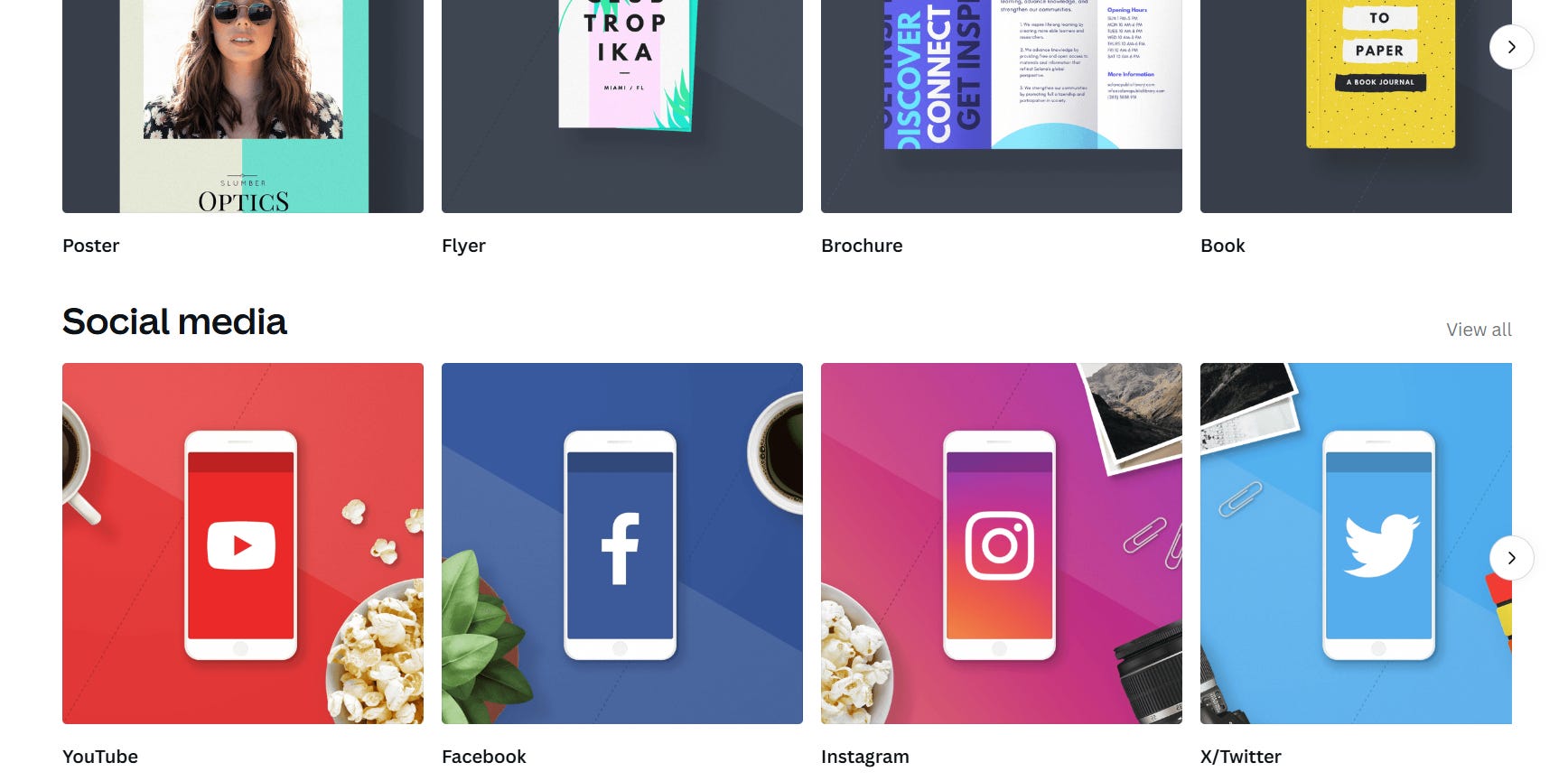
19. Content Templates for Every Niche
Podcast thumbnails, YouTube intros, infographics.
Search your niche — Canva’s got a head start ready for you.
20. Embed Designs in Websites or Emails
Grab a link or iframe — share a design that updates live.
Make changes in Canva → Automatically reflected everywhere.
So... How Many of These Did You Know?
Be honest. 3? 5?
If you knew 10+, you’re a Canva ninja. 🥷
If not, no worries. You’re now officially dangerous.
Want More Hacks Like These?
I send out a short, punchy newsletter each week.
Tips, tools, and playbooks to grow your audience without burning out.